Build Your Own Private AI Assistant in 30 Minutes: Local LLM + RAG + Voice + Coding (2026 Guide)
AI-assisted, human-edited
This article was drafted with the help of large language models and reviewed by a Shine Soft Corp engineer before publication. Facts, citations, and code samples were verified against the linked sources. All opinions and editorial direction belong to the editor.
Learn how to build your own ChatGPT alternative with Ollama, RAG, voice AI, coding assistants, memory, and MCP tools—all running locally with no monthly subscription
Build Your Own Private AI Assistant in 30 Minutes: Local LLM + RAG + Voice + Coding (2026 Guide)Learn how to build your own ChatGPT alternative with Ollama, RAG, voice AI, coding assistants, memory, and MCP tools—all running locally with no monthly subscription
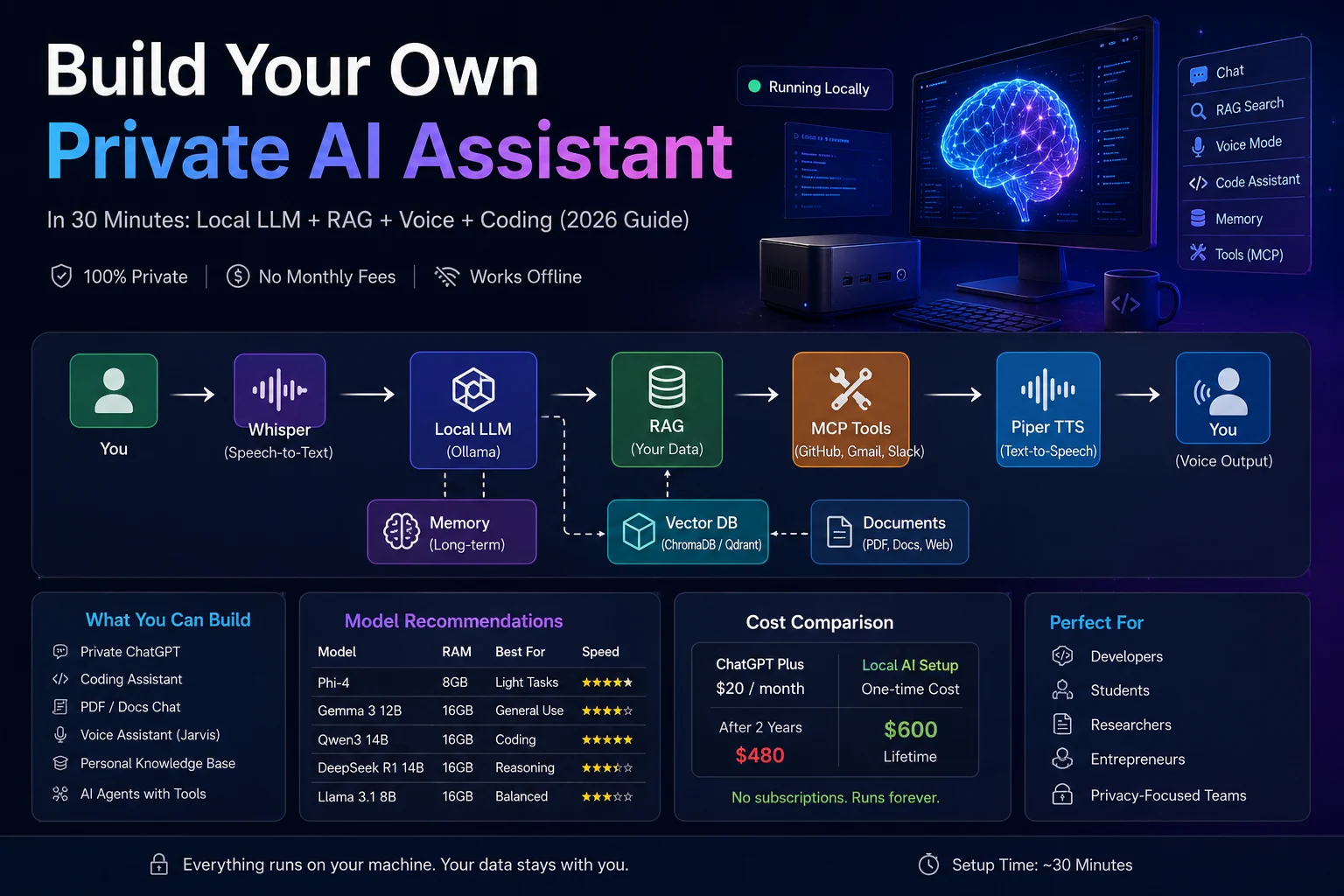
🚀 Build Your Own Private AI Assistant in 30 Minutes
Imagine running your own ChatGPT-like assistant directly on your laptop.
✅ No API fees ✅ No subscriptions ✅ No data leaving your device ✅ Works even offline
Modern open-source AI models are now powerful enough to build:
- 💻 Coding assistants
- 📄 Document search (RAG)
- 🎤 Voice assistants
- 🧠 Long-term memory
- 🔌 Tool integrations
- 🌐 Browser automation
👉 In this beginner-friendly guide, we’ll build your complete local AI system step-by-step.
🤔 Why Developers Are Switching to Local AI
 ### 🔒 Privacy First
Your data stays on your machine — no cloud exposure.
💸 Save Money
No monthly subscriptions or API costs.
⚙️ Full Control
Customize models, tools, and workflows.
🌐 Offline Ready
Works without internet.
🧠 Traditional AI vs Local AI
📊 Visual Overview
☁️ Cloud AI Flow
graph TD
    A[User] --> B[Internet]
    B --> C[OpenAI API]
    C --> D[Response]
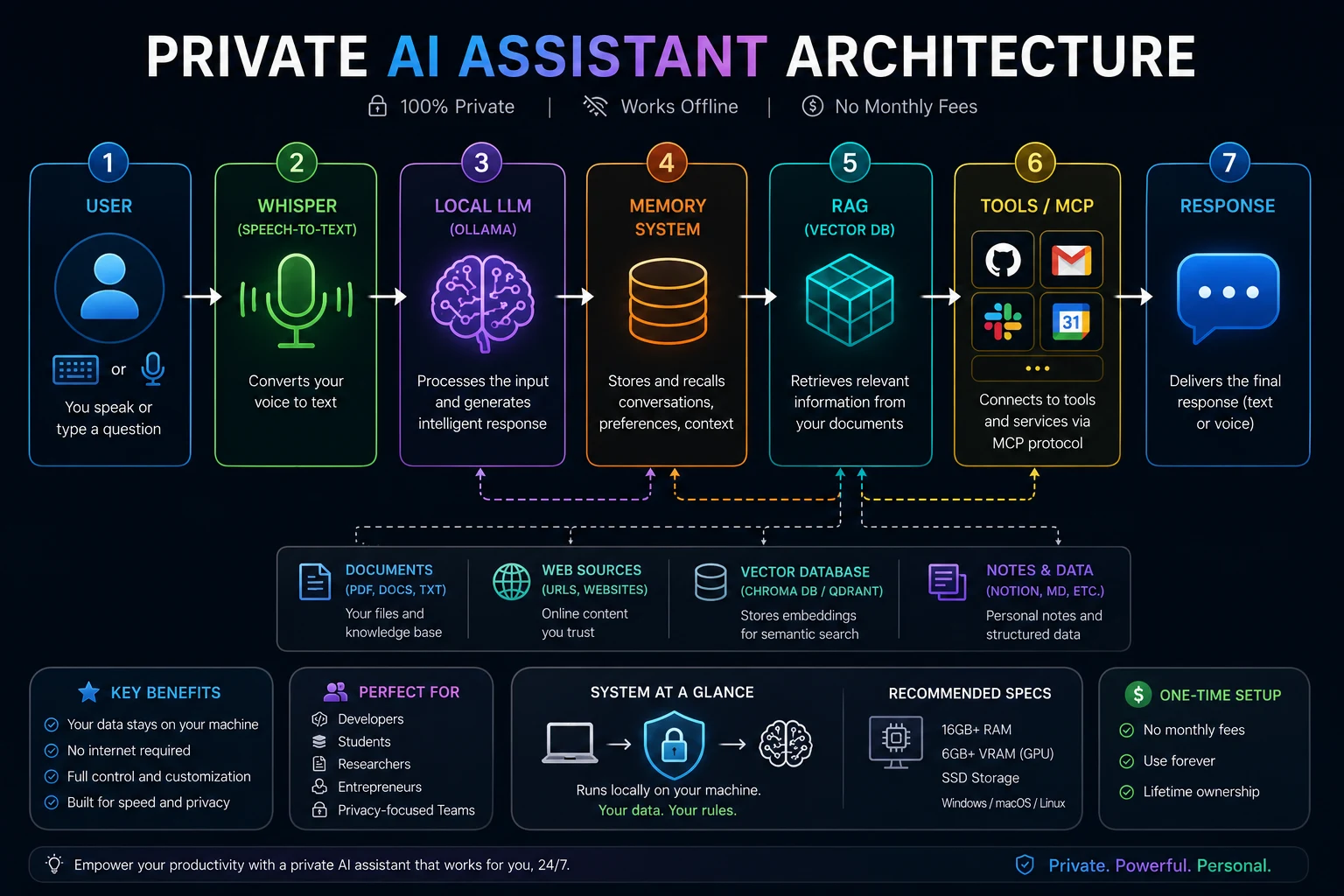
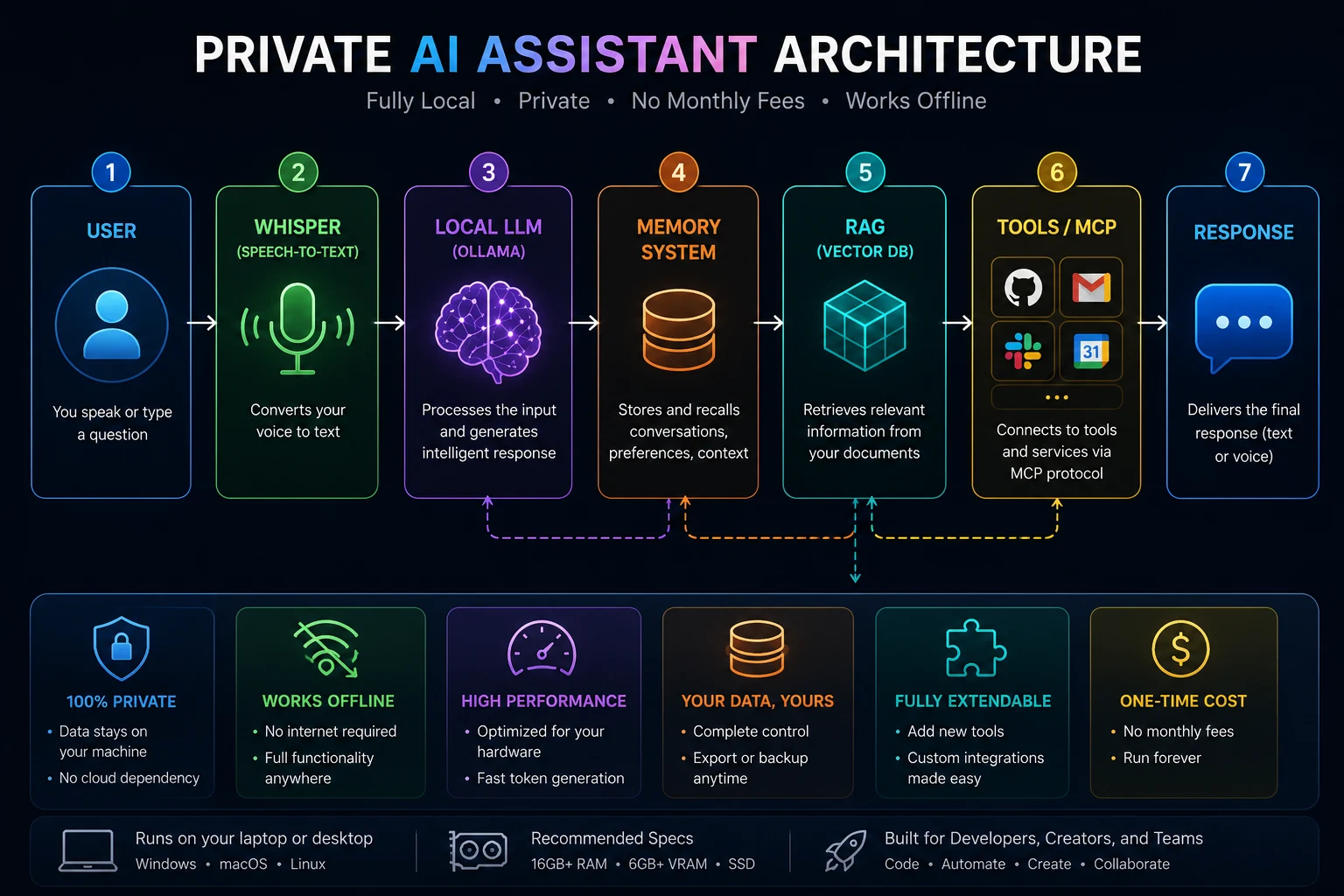
💻 Local AI Flow
graph LR

U["User"]
W["Whisper STT"]
L["Local LLM (Ollama)"]
M["Memory"]
R["RAG Vector DB"]
T["MCP Tools"]
P["Response"]

U --> W
W --> L
L --> M
M --> R
R --> T
T --> P
✅ Everything runs locally — faster, private, and customizable.
🖥️ Hardware Requirements (Beginner Friendly)
✅ Minimum Setup (Good for beginners)
- 16GB RAM
- Intel i5 / Ryzen 5
- SSD
👉 Works fine for small models.
⚡ Recommended Setup
- 32GB RAM
- RTX 4060 GPU
- NVMe SSD
👉 Smooth performance + faster responses.
🚀 Advanced Setup
- 64GB RAM
- RTX 5090
- Multi-model workflows
👉 For heavy AI workloads.
🧩 Step 1: Install Ollama (Your AI Engine)
👉 Ollama lets you run AI models locally with one command.
✅ Install Ollama
Visit: https://ollama.com
Download and install for your OS.
✅ Run Your First Model
ollama run qwen3:14b
🎉 That’s it! You now have a working AI assistant.
📥 How to Download Qwen3 Models
Ollama automatically downloads the model the first time you run it. You don’t need to manually install anything.
You can also pull models explicitly:
ollama pull qwen3:14b
Official model library: 👉 https://ollama.com/library/qwen3
🧠 Qwen3 Model Variants Explained
Qwen3 comes in multiple sizes. Choosing the right one depends on your hardware and use case.
| Model | Size | RAM Needed | Speed | Quality | Best For |
|---|---|---|---|---|---|
| qwen3:1.8b | ~2GB | 4GB RAM | ⚡ Very Fast | Basic | Low-end PCs, quick tasks |
| qwen3:4b | ~4GB | 8GB RAM | ⚡ Fast | Good | General use |
| qwen3:7b | ~7GB | 12GB RAM | ⚡ Medium | Better | Coding + chat |
| qwen3:14b | ~14GB | 16GB+ RAM | 🐢 Slower | High quality | Best balance |
| qwen3:32b | ~32GB | 32GB+ RAM | 🐢 Slow | Very high | Advanced reasoning |
| qwen3:72b | ~70GB | 64GB+ RAM | 🐢 Very Slow | Top-tier | Enterprise-level |
⚖️ Which One Should You Use?
- 💻 8GB RAM laptop →
qwen3:4b - 💻 16GB RAM system →
qwen3:7borqwen3:14b - 🖥️ High-end PC (32GB+) →
qwen3:32b - 🚀 Best overall balance →
qwen3:14b
🔍 Quick Comparison
- Smaller models → faster, less accurate
- Larger models → slower, more intelligent
- 14B is the sweet spot for most users
✅ Pro Tip
If your system struggles, switch to a smaller model:
ollama run qwen3:7b
You can always upgrade later as your hardware improves.
🧠 Step 2: Choose the Right Model
| Model | RAM | Coding | Speed |
|---|---|---|---|
| Phi-4 | 8GB | ★★★★ | Very Fast |
| Gemma 3 12B | 16GB | ★★★★ | Fast |
| Qwen3 14B | 16GB | ★★★★★ | Fast |
| DeepSeek R1 | 16GB | ★★★★★ | Medium |
👉 Beginner Tip: Start with Phi-4 or Gemma 3 if your PC is limited.
💬 Step 3: Add a Beautiful Chat UI
Running AI in terminal is boring 😄 Let’s add a modern interface.
✅ Install One of These:
- Open WebUI ⭐ (Recommended)
- LibreChat
- AnythingLLM
🎯 What You Get
- Chat history
- File uploads
- Multiple models
- Clean UI
👉 Now your AI feels like ChatGPT.
💻 Step 4: Turn It Into a Coding Assistant
✅ Setup
VS Code
+
Continue.dev
+
Ollama
+
Qwen3
🎯 What It Can Do
- Generate code
- Fix bugs
- Explain logic
- Write tests
👉 Works like Cursor AI — but fully local.
📄 Step 5: Add RAG (Teach AI Your Data)
RAG = Retrieval Augmented Generation
👉 It lets your AI read your documents.
✅ Supported Files
- PDFs
- Word docs
- Websites
- Notion
- Company docs
✅ Tools You Can Use
- ChromaDB
- Qdrant
- FAISS
📊 How It Works
📄 Documents
     ↓
🧠 Embeddings
     ↓
🗄️ Vector DB
     ↓
🤖 LLM
     ↓
💬 Answer
👉 Now your AI can answer questions from your files.
🎤 Step 6: Add Voice (Build Jarvis)
Let’s make your AI talk!
✅ Components
- 🎤 Whisper → Speech-to-text
- 🤖 Ollama → Brain
- 🔊 Piper → Text-to-speech
📊 Voice Pipeline
[🎤 Microphone]
        ↓
[🧠 Whisper]
        ↓
[🤖 LLM]
        ↓
[🔊 Piper]
        ↓
[🎧 Speaker]
👉 Now you can talk to your AI like Iron Man 😎
🧠 Step 7: Add Memory (Make It Personal)
Without memory, AI forgets everything.
✅ Example
User:
My birthday is July 12
Later:
User:
When is my birthday?
AI:
Your birthday is July 12 🎉
✅ Tools
- Mem0
- LangGraph Memory
- SQLite
👉 Makes AI feel human.
🔌 Step 8: Connect Tools with MCP
MCP = Model Context Protocol
👉 Think of it as USB-C for AI tools
✅ Supported Integrations
- GitHub
- Gmail
- Slack
- Calendar
- Stripe
📊 Architecture
🤖 LLM
   ↓
🔌 MCP Client
   ↓
┌───────────────┬───────────────┬───────────────┬───────────────┐
│ 🐙 GitHub     │ 💬 Slack      │ 📅 Calendar   │ 📧 Gmail      │
└───────────────┴───────────────┴───────────────┴───────────────┘
👉 Your AI can now take actions, not just chat.
🛠️ Real Projects You Can Build
🤖 Private ChatGPT
Ollama
+
Open WebUI
📄 PDF Chat Assistant
Ollama
+
Qdrant
+
LlamaIndex
💻 Coding Assistant
VS Code
+
Continue.dev
+
Qwen3
🎤 Jarvis Voice Assistant
Whisper
+
Piper
+
Ollama
⚡ Performance Comparison
| Model | Tokens/sec |
|---|---|
| Phi-4 | 75 |
| Gemma 3 | 42 |
| Qwen3 | 35 |
| DeepSeek R1 | 18 |
💰 Cost Comparison
☁️ ChatGPT Plus
$20/month 👉 2 years = $480
💻 Local AI Setup
Mini PC: $600 (one-time)
✅ No monthly fees ✅ Unlimited usage
🧯 Common Problems (Beginner Fixes)
❌ GPU Not Working
👉 Update NVIDIA drivers 👉 Check CUDA support
❌ Out of Memory
👉 Use smaller models 👉 Use GGUF quantized models
❌ Slow Responses
👉 Reduce context size 👉 Switch to lighter model
❌ Windows vs Linux
👉 Linux = better performance 👉 Windows = easier setup
🔮 The Future of AI Is Personal
 Soon everyone will have:
- Personal AI agents
- Voice assistants
- Coding copilots
- Private knowledge bases
- Autonomous workflows
👉 And everything will run locally.
✅ Final Thoughts
You don’t need expensive subscriptions anymore.
With modern tools, you can build your own AI assistant in under 30 minutes.
👉 Private 👉 Powerful 👉 Fully customizable
🚀 Welcome to the era of personal AI.
Frequently asked questions
What are the benefits of building a private AI assistant?
The benefits of building a private AI assistant include no API fees, no subscriptions, no data leaving your device, and the ability to work offline.
What are the hardware requirements for building a private AI assistant?
The minimum hardware requirements include 16GB RAM, Intel i5 / Ryzen 5, and an SSD. However, a recommended setup includes 32GB RAM, an RTX 4060 GPU, and an NVMe SSD.
How do I install Ollama, the AI engine?
To install Ollama, visit the Ollama website, download and install the software for your operating system, and then run your first model using the command 'ollama run qwen3:14b'.
What is RAG and how does it work?
RAG (Retrieval Augmented Generation) is a technology that allows your AI to read and learn from your documents. It works by embedding your documents into a vector database, which is then used by the LLM to generate answers to your questions.
Can I add voice capabilities to my private AI assistant?
Yes, you can add voice capabilities to your private AI assistant using tools like Whisper for speech-to-text and Piper for text-to-speech.
How do I add memory to my private AI assistant?
You can add memory to your private AI assistant using tools like Mem0, LangGraph Memory, or SQLite, which allow your AI to store and recall information over time.